What does an ad blocker block?
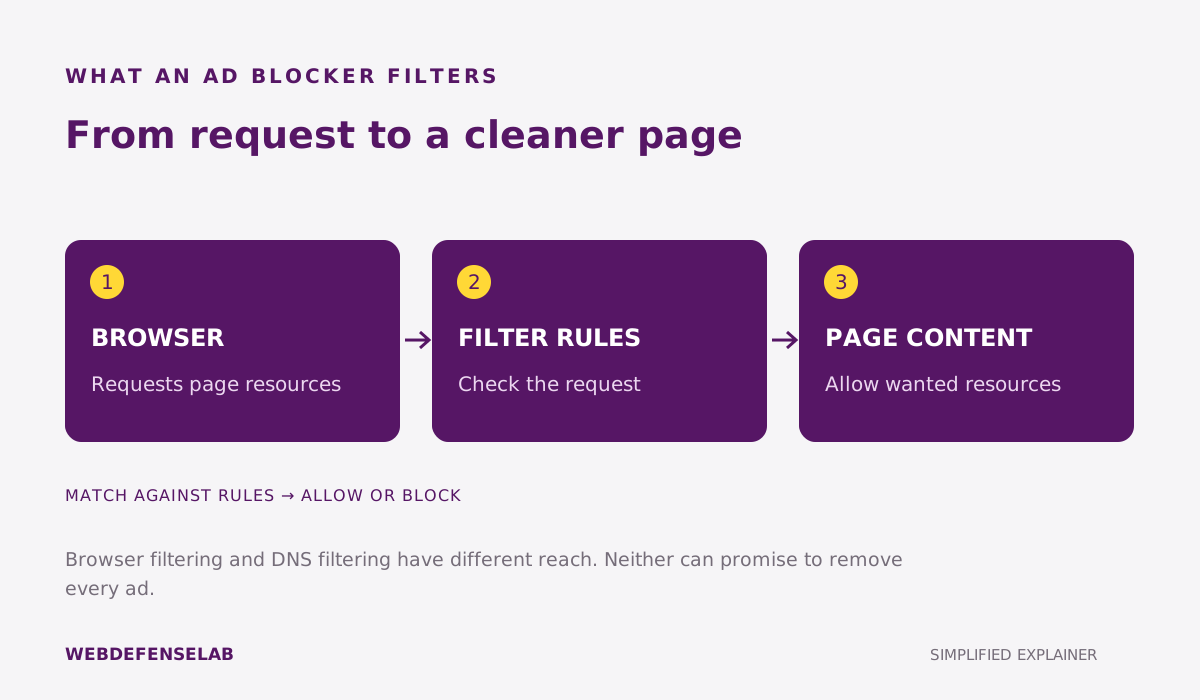
An ad blocker applies rules to requests or page elements. It may stop a known advertising request before a resource loads, hide an unwanted element, or combine both approaches. A tracker blocker focuses on tracking-related resources; a DNS filter works with domains. These functions overlap, but they do not cover exactly the same things.
Consider a page with a banner, an embedded video, and a sign-in form. Removing the banner visually is different from preventing its network request. Blocking a third-party script may also affect a useful embedded feature. The aim is a readable, working page with deliberate filtering, rather than the largest possible blocked-item counter.
Choose the browser before choosing the product
Write down the exact browser and device where you want fewer ads. “On my phone” is not enough: the answer can differ between Safari, Firefox for Android, and advertising inside another app. A desktop browser extension cannot simply be copied into every mobile browser.
| Where you browse | A practical starting point |
|---|---|
| Chrome desktop | A currently supported extension, such as uBlock Origin Lite or AdGuard’s current Chrome edition |
| Firefox | Compare uBlock Origin and other maintained Firefox add-ons |
| Safari on iPhone | Look for the specific Safari content-blocking app and setup instructions |
| Advertising outside the browser | Investigate the app or device-level scope; an extension may not apply |
The original uBlock Origin and uBlock Origin Lite are separate projects. The developer’s current documentation distinguishes their browser support and capabilities. Avoid outdated Chrome instructions for the original extension, and follow the maintained project’s official installation links.
Our best ad blockers guide compares the shortlist, while the device-specific guides below narrow it to the browser you actually use.
Read permissions as part of the decision
A content blocker may need access to website data to apply its rules. Permission wording can look broad because it describes the capability available to an extension, not a promise about every action the developer will take. Read both the browser’s explanation and the product’s privacy documentation. Check that the publisher and store listing match the official project.
Mozilla’s extension permission guide explains the meaning of Firefox requests, including access to website data. Use that information to judge whether the requested access makes sense for the tool. A logo and a familiar name alone are not a reliable way to distinguish a genuine extension from a lookalike.
After installing, learn where the extension menu lives and how to review its site access. On a shared or managed device, confirm that you are allowed to change the browser setup. Keep the installation small enough to understand; several blockers running together can make it harder to identify which rule caused a problem.
Filters, allowlists and paid extras
Begin with the product’s recommended filters. Additional language or annoyance lists may be useful, but switching on everything at once makes troubleshooting harder. An allowlist is a deliberate exception: use the narrowest scope that lets the feature you need work. Review old exceptions occasionally, especially for sites you no longer visit.
Some products allow a category of advertising by default. For example, Adblock Plus documents its Acceptable Ads setting and the option to disable it. Seeing an advertisement can therefore reflect a chosen policy rather than a broken installation. Decide whether you prefer some allowed advertising or stricter filtering, then inspect the relevant settings.
Before paying, identify the extra you are buying. A premium browser feature, a separate device app, a DNS service, and a VPN may have different licenses and different scopes. AdGuard’s review explains why those product distinctions matter. A free blocker may already meet a simple browser-only need.
When a page stops working
- Identify the exact failure: a missing video, an unresponsive sign-in button, or an empty area.
- Reload the page and confirm that the browser and extension are up to date.
- Use the blocker’s site-specific control to make a temporary change, then reload again.
- If that resolves the issue, investigate a narrow exception instead of disabling filtering everywhere.
- Remove temporary changes that were not needed and report reproducible filter problems through the official project.
For example, if a payment form works only with a temporary exception, record the site and setting before you forget. Do not assume that every checkout failure is caused by the blocker; an expired session, a network problem, or a site error can look similar. Change one thing at a time so the result is informative.
Blocking ads can make browsing calmer, but it does not replace malware protection, careful account management, or sound judgment about downloads. It also cannot guarantee the removal of every video ad or every tracking technique as websites and browsers change.
Common questions
Can an ad blocker stop all tracking?
No. Accounts, submitted information, and other signals can still identify you. Blocking known tracking resources is one part of privacy, not a guarantee of anonymity.
Why do I still see some ads?
The product may allow some ads, lack a rule for that resource, or operate only in one browser. Check scope and settings before assuming you need a paid upgrade.
Should I install several blockers?
Start with one maintained blocker and a clear configuration. Overlapping tools can make breakage harder to diagnose. Add another only when you understand its distinct purpose.
Sources and guide notes
Reviewed September 25, 2026. Explanations draw on the documentation below; examples and selection checklists are WebDefenseLab guidance. Product summaries are documentation-based assessments, without hands-on scores.