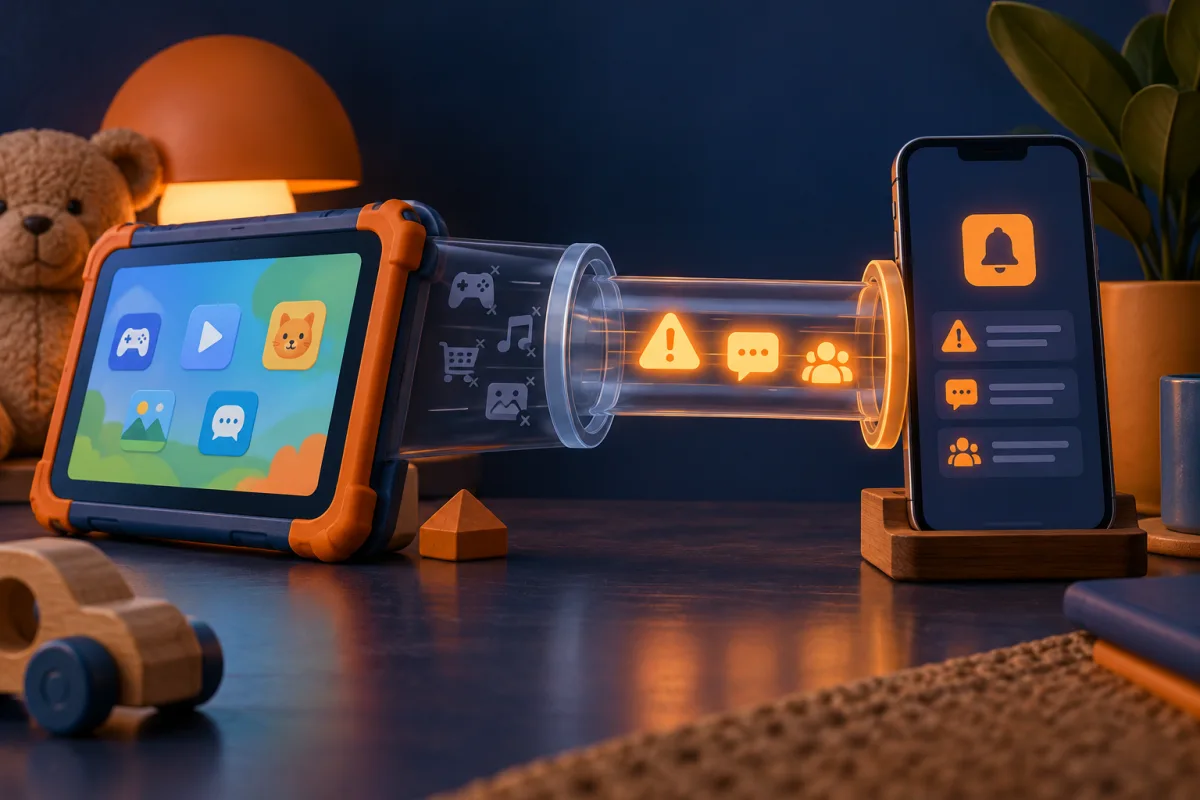
Start with the devices your child actually uses and the problem you want to solve. Consider Bark for supported content-monitoring needs, Aura for mobile routines and filtering, and Norton Family for its documented supervision tools.
Agree on the purpose before choosing software
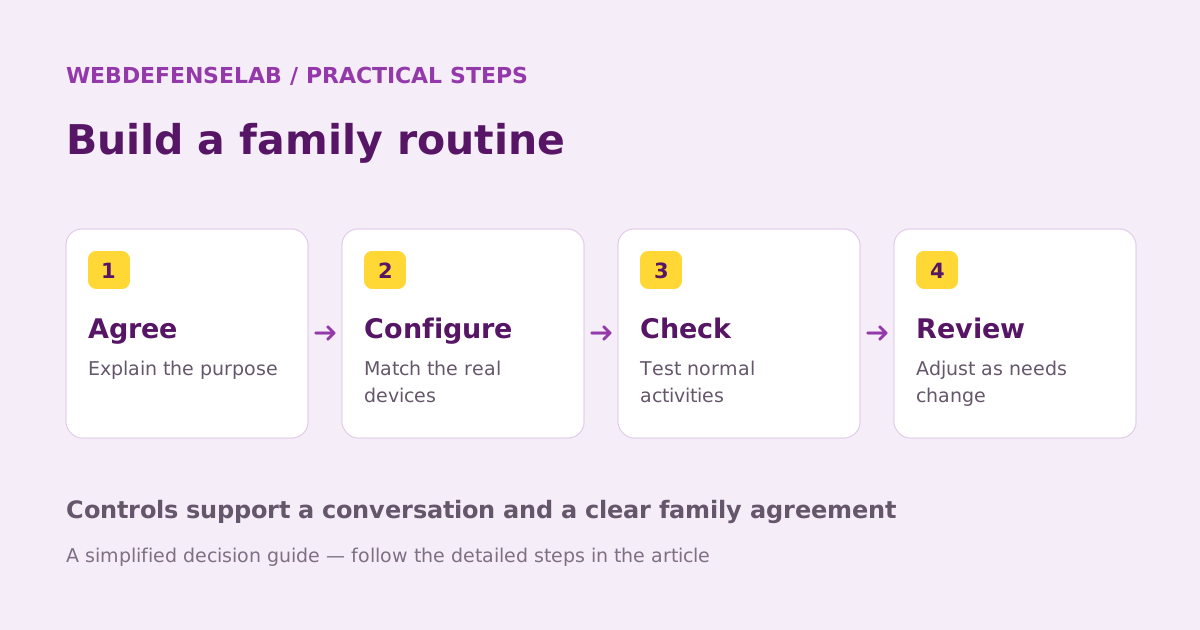
Parental controls work best as part of an explained family routine. Decide whether the main goal is bedtime, purchase approval, web filtering, location sharing, or noticing a specific online concern. Different products cover those jobs differently.
List each child’s device, operating system, browser, and school restrictions. Also list the device the parent will use to manage settings. The ability to view a dashboard on a Mac does not mean the product can supervise a child’s Mac.
| Starting point | Useful reason to investigate | Check first |
|---|---|---|
| Built-in family controls | Basic permissions and screen-time routines | Your child’s account and device compatibility |
| Bark | Supported content monitoring and alerts | The exact app, device, and monitoring setup |
| Aura | Mobile filtering and scheduled routines | Phone requirements and the relevant family plan |
| Norton Family | Documented web and time supervision | Child-device and browser limitations |
Distinguish filtering from visibility
Blocking a website, limiting internet access, and reviewing content are separate capabilities. A product may offer one without the others on the same device. Check the feature matrix for the specific platform rather than relying on an advertisement showing several devices together.
Google Family Link is a useful official starting point for families using supported child accounts and devices. Also inspect the controls already available in the child’s operating system. A paid service should add something you need rather than replace a free setting with a more complicated workflow.
For monitoring features, explain what will be visible and who will see it. Give children a way to discuss an incorrect alert. Software cannot reliably infer the meaning of every joke, quotation, or conversation, and an alert is not a complete account of what happened.
Run a normal family trial
Choose a calm time to configure the service together. Test a school resource, an approved entertainment site, bedtime, and a request for an exception. Check behavior on the networks the device normally uses and after a restart.
Do not assume all offline apps stop working when internet access is paused. Similarly, a browser rule may not control a separate app in the same way. Write down the actual result so the family understands the boundary.
Keep an adult recovery route and a plan for urgent access. A forgotten parental password or a blocked school login should not require deleting accounts in frustration. Make sure the other caregiver knows the basic process if shared management is appropriate.
Choose the least complicated workable arrangement
A young child’s tablet may mainly need purchase restrictions and a bedtime schedule. A teenager’s mixed phone-and-laptop setup may need a more nuanced agreement about privacy and exceptions. Buying the most extensive monitoring package is not automatically the best response to either situation.
Review the arrangement periodically as the child’s responsibilities change. Remove permissions and data connections that are no longer needed. Use the reports to support a conversation, not to replace it.
We compare documented capabilities, not safety outcomes or detection accuracy. Read the individual reviews, verify current device support, and choose a setup the family can understand and maintain. No parental-control app replaces direct help when a child reports an immediate safety concern.
Sources & review notes
Source review: September 25, 2026. This is a documentation-based assessment; we have not measured alert speed, product performance, or support outcomes. Product terms can change.
About the author
 Oliver ReedDevice & family security
Oliver’s coverage explores device protection, malware prevention, recovery, and family device controls. These guides put operating-system tools first, explain when extra protection may help, and distinguish prevention from a response to an active incident.
View profile and articles