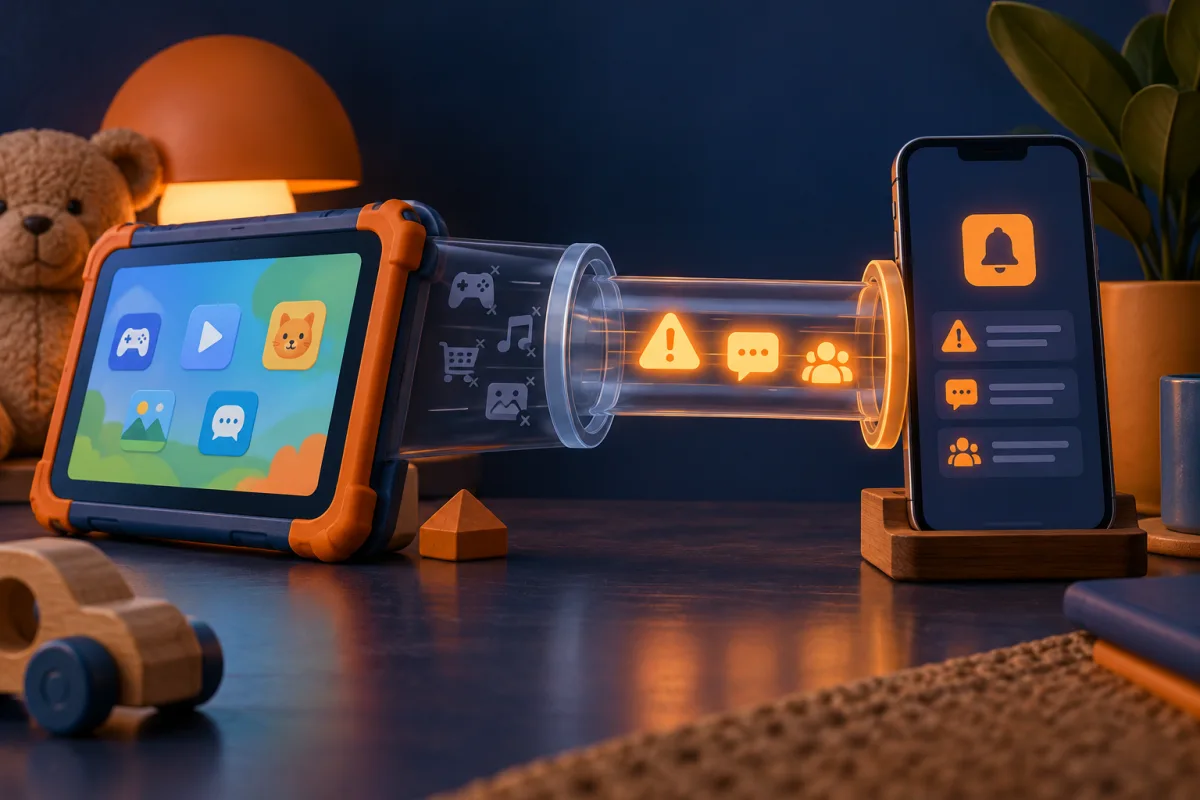
Bark is worth investigating if supported content alerts are your priority. Check the exact device and service first: monitoring depth and setup can differ substantially, especially on iOS.
Choose the capability, not just the brand
Bark offers several family products and describes monitoring and screen-time functions. This review concerns the app and its documented setup, not a claim that every Bark-branded device or plan behaves identically.
Before subscribing, list the child’s phone, operating-system version, and the accounts or apps you want covered. Check each against Bark’s current compatibility information. A general statement that a product works on iPhone does not establish that every monitoring function works directly inside the phone app.
Bark’s documentation explains additional setup routes for deeper iOS monitoring. Confirm the current hardware or computer requirements and the ongoing connection process. Those practical requirements can determine whether the service is a good fit for your household.
Separate monitoring from screen-time controls
Content alerts and internet restrictions solve different problems. Decide which one you need and verify it independently. A parent seeking a bedtime routine may not need the same setup as a parent concerned about supported message-content alerts.
Filtering also has a scope. Blocking access to a service may differ from controlling every action inside its app. Check the provider’s feature matrix and test the ordinary apps your child uses before promising a particular level of control.
| Your goal | What to verify |
|---|---|
| Content alerts | Supported services and the required connection method |
| A bedtime routine | What remains available when restrictions begin |
| Several child devices | Installation and monitoring requirements for each one |
| Shared caregiving | Who receives alerts and can change settings |
Make the first week a careful setup period
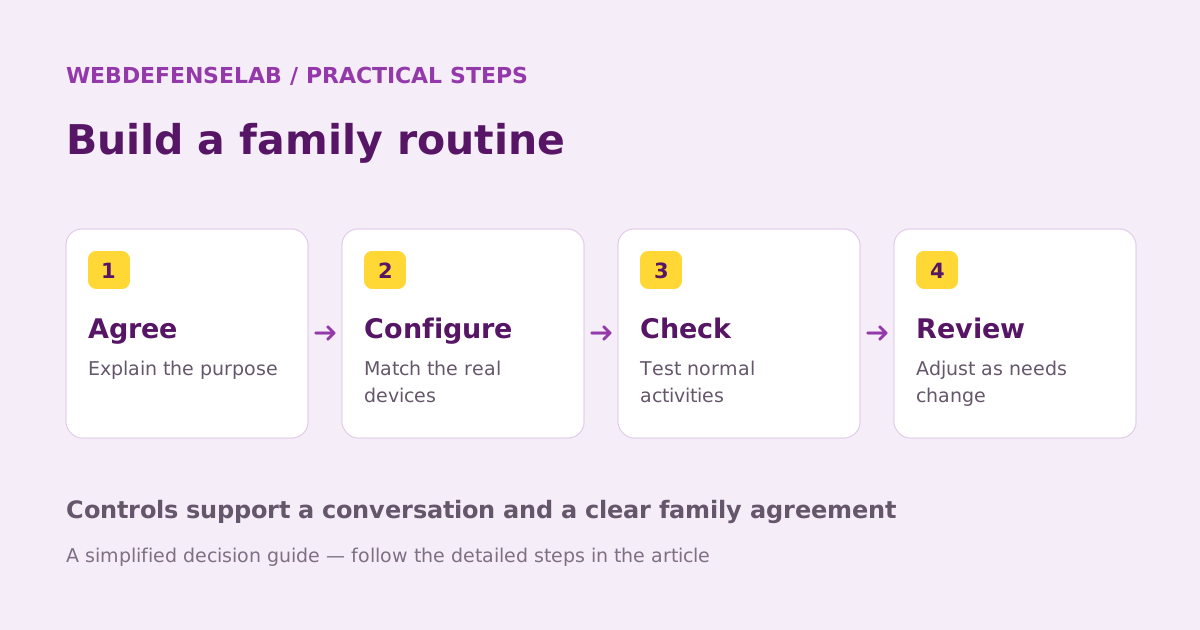
Explain the purpose of monitoring and which information adults may see. Agree how an alert will be discussed and how a child can ask for an exception. Keep the conversation age-appropriate and avoid presenting automated interpretation as a final judgment.
Test routine access: school sites, approved communication, scheduled downtime, and an allowed entertainment activity. Observe what changes when the device moves between networks or is restarted. Keep the vendor’s setup instructions available for the specific model.
Review notification settings so important messages are not lost among low-priority alerts. If an alert seems wrong, inspect context before drawing conclusions. You should be able to distinguish a technical setup problem from a real family issue.
Who should compare a simpler option
If the main need is purchase approval or a basic device schedule, start by checking the operating system’s built-in family controls. A more involved monitoring arrangement may add maintenance that your household does not need.
If you choose Bark, account for the complete subscription and any required additional equipment. Check the cancellation terms and how connected accounts or devices are removed. Removing the parent app alone may not complete every part of the offboarding process.
For example, a family with an iPhone should confirm the deeper-monitoring route before buying on the assumption that app installation alone is enough. Compare other parental-control options around the actual requirement. We have not measured Bark’s detection accuracy, false-alert rate, or support response.
Check current features, eligibility, and renewal terms.
Sources & review notes
Source review: September 25, 2026. This is a documentation-based assessment; we have not measured alert speed, product performance, or support outcomes. Product terms can change.
About the author
 Oliver ReedDevice & family security
Oliver’s coverage explores device protection, malware prevention, recovery, and family device controls. These guides put operating-system tools first, explain when extra protection may help, and distinguish prevention from a response to an active incident.
View profile and articles