The best password managers for different needs
Ten options, with a useful reason to consider each. The order is a reading guide, not a numerical performance ranking.
We may earn a commission from qualifying links. Affiliate disclosure · How we compare

1Password
1Password is a paid password manager with individual and family accounts. Its account password and Secret Key work together to protect the vault. Shortlist it for a household that needs private items alongside shared logins, and make the Emergency Kit part of setup rather than a task for later.
- Separate private and shared vaults
- Apps for major desktop and mobile platforms
- Watchtower flags credentials needing attention
Before you choose The Secret Key is not a substitute for the account password. Plan recovery and compare the renewal price after any introductory offer.

RoboForm
RoboForm combines password storage with form-filling tools. Its free plan is limited to one device, while paid personal plans add cross-device use and other features. It is a useful comparison for people who repeatedly enter account and address details and want a structured way to manage them.
- Free single-device starting point
- Paid synchronization and sharing options
- Form-filling workflow to evaluate
Before you choose Free access is not the same as free synchronization across all devices. Review saved identity details before autofilling a form.

NordPass
NordPass provides a dedicated vault for passwords and passkeys, with free and paid offerings to compare. Start with the devices and concurrent access you need, then check sharing, exposure checks and recovery on the actual plan. Another Nord-branded subscription does not automatically establish your NordPass entitlement.
- Dedicated password and passkey storage
- Free and paid personal options
- Sharing and account-health features to compare
Before you choose Verify plan-specific limits and recovery before migrating. Encryption terminology alone does not measure the safety of your entire setup.

Keeper
Keeper offers a password vault with paid cross-device plans and a family option. Its personal plan comparison makes Emergency Access and secure sharing useful points to investigate. Compare optional additions separately, especially if a breach-monitoring or file-storage feature is the reason you are considering it.
- Paid cross-device password and passkey storage
- Family plan with separate private vaults
- Emergency Access on eligible paid plans
Before you choose The free tier is a limited mobile option. BreachWatch and some storage or support services are separate additions; verify the checkout contents.

Aura Password Manager
Aura’s password manager is worth checking if you already want its broader identity and device-protection package. The provider describes password generation, autofill, synchronization and exposed-password alerts. Evaluate the vault on its own merits before treating the rest of the bundle as a reason to keep every account in it.
- Password generation and autofill
- Vault access across supported devices
- Part of a broader protection offering
Before you choose Check the exact bundle, country eligibility, and supported browsers. Identity-monitoring coverage and password storage are different services.

Proton Pass
Proton Pass combines a password vault with hide-my-email aliases. The free plan offers unlimited logins and device use with a limited alias allowance; paid features extend that toolkit. It is a strong option to investigate when avoiding password reuse and reducing exposure of your primary email are both priorities.
- Ongoing free vault with device synchronization
- Email aliases alongside stored logins
- Passkey support on compatible services
Before you choose Paid-only capabilities include some sharing, monitoring and recovery features. An alias forwards mail; it does not make every account anonymous.

Dashlane
Dashlane offers paid personal password management with synchronization, sharing and security-related extras. Its Family plan is worth comparing for a larger household, but read the member entitlements carefully: the advertised VPN benefit is for the plan manager, rather than every family member.
- Paid password management across devices
- Family offering for up to ten accounts
- Sharing and account-security tools
Before you choose The personal page lists a trial rather than an ongoing free plan. Family members do not all receive the manager’s VPN entitlement.

Bitdefender SecurePass
Bitdefender SecurePass provides password storage, generation, synchronization and sharing across supported platforms. It is worth evaluating if you already use Bitdefender, but the antivirus application and the password vault still need separate attention. Confirm whether your exact subscription includes SecurePass before purchasing another license.
- Dedicated password-management product
- Multi-platform access and synchronization
- Standalone and eligible bundle offers
Before you choose Check the current SecurePass entitlement and app requirements. An older Bitdefender subscription or product name does not prove that the new vault is included.

Bitwarden
Bitwarden’s free individual plan includes unlimited vault items and access across devices. Paid personal features and organization-based sharing are separate choices. It is a useful starting point when you want to replace password reuse without making a subscription the first requirement.
- Unlimited free personal vault storage
- Synchronization across devices
- Separate options for sharing and paid recovery features
Before you choose Premium individual and Families are different offers. Check organization membership and sharing rules instead of assuming an individual upgrade covers a household.
Apple Passwords
Apple Passwords brings passwords, passkeys and verification codes into an app within the Apple ecosystem. It is a useful baseline for compatible Apple devices, with Windows access through supported iCloud tools. Check your whole device mix before assuming it replaces a cross-platform manager for everyone in the household.
- Built into supported Apple systems
- Passwords, passkeys and security recommendations
- Supported iCloud Passwords integration on Windows
Before you choose Check operating-system, browser and account requirements. Apple and Windows support does not imply an equivalent Android or Linux workflow.
Sources and how to use this shortlist
These summaries use provider documentation and our selection advice, not hands-on performance scores. Features, plans, and regional availability can change. Confirm the first payment, renewal cost, and cancellation terms before subscribing.
- 1Password product documentation
- RoboForm product documentation
- NordPass product documentation
- Keeper product documentation
- Aura Password Manager product documentation
- Proton Pass product documentation
- Dashlane product documentation
- Bitdefender SecurePass product documentation
- Bitwarden product documentation
- Apple Passwords product documentation
Sources checked September 25, 2026. Full reviews explain the scope and limitations in more detail.

Start with Bitwarden or Proton Pass for ongoing free access across devices. Compare 1Password and Keeper when shared access and recovery planning matter. Consider Apple Passwords for a compatible Apple-centered routine. The right choice is the one that supports your actual devices and that you can recover when a phone or laptop is lost.
Compare the ten password managers
Use this table to narrow the options after reading the quick reviews above. “Free” means an ongoing offer with its own limits, not a temporary trial. Paid plans and bundle entitlements can change; the provider buttons lead to current information. Prices are deliberately checked at the provider because promotions, billing periods, taxes and renewals can differ.
| Password manager | A reason to consider it | Plan approach | Full assessment |
|---|---|---|---|
| 1Password | Shared vaults across devices | Paid individual and family plans; trial available | 1Password review |
| RoboForm | Form filling and organized logins | Free single-device plan; paid Premium and Family | RoboForm review |
| NordPass | A dedicated password and passkey vault | Free and paid personal offerings | NordPass review |
| Keeper | Sharing and planned emergency access | Limited free mobile tier; paid Unlimited and Family | Keeper review |
| Aura Password Manager | A vault within an identity-protection bundle | Subscription bundle; confirm exact entitlements | Aura Password Manager review |
| Proton Pass | Free device sync and email aliases | Free plan; paid Plus and other eligible Proton plans | Proton Pass review |
| Dashlane | Paid personal and family account management | Paid Premium and Family; trial available | Dashlane review |
| Bitdefender SecurePass | A dedicated vault to compare with your security bundle | Paid standalone or eligible security bundle; trial available | Bitdefender SecurePass review |
| Bitwarden | Free password management across devices | Free individual; paid Premium and Families | Bitwarden review |
| Apple Passwords | An Apple-centered everyday setup | Included on supported Apple systems; no separate vault subscription | Apple Passwords review |
How we selected and compared these options
We reviewed the official personal-product and plan documentation linked in the summaries and full reviews. The comparison focuses on device access, ongoing free availability, private and shared storage, recovery preparation, and the difference between a standalone vault and a bundled service. Each product has a distinct reason to enter a shortlist; the sequence is not a measured ranking.
We have not conducted a penetration test, cryptographic audit, or timed autofill benchmark. We therefore do not assign numerical security scores, claim a universal winner, or call a provider’s advertised performance our own test result. Security documentation is a useful input, but suitability also depends on configuration and the person using the tool.
Our selection advice asks a practical question: can you create, retrieve, update and recover important credentials on your real devices? A feature that exists in a plan but remains unconfigured has limited value. Compare products using the same short exercise so a familiar logo or an introductory discount does not make the entire decision.
Which free password managers are worth a look?
Bitwarden and Proton Pass offer an ongoing free basis for a multi-device routine. Their paid tiers extend the feature set, so look closely at sharing, recovery and other extras before assuming that a free plan covers every requirement. Apple Passwords is another useful baseline when its supported-device workflow fits.
Other kinds of free access have narrower purposes. RoboForm’s single-device offer can help you evaluate its approach, while Keeper’s documented free mobile allowance is limited. A trial of a paid product is useful for testing, but it should not be mistaken for a subscription that will remain free indefinitely. NordPass also deserves a plan-specific check for the way you intend to use it across devices.
Consider a student with one laptop and one phone. Their first goal may be unique passwords available on both. An ongoing free product can meet that goal without adding a renewal decision. If they later need household sharing or an emergency-contact feature, they can evaluate that need separately rather than paying for every possible future scenario on day one.
What matters for family password management?
Count people separately from devices. A plan that allows several installations is not necessarily a plan with separate private accounts for multiple household members. Start by deciding which information should be private and which accounts actually need sharing. Then compare the plan’s permissions, membership and recovery arrangements.
1Password, Keeper, Dashlane and Bitwarden each offer household-oriented options, but their structures and extras differ. For example, Dashlane’s current family comparison gives the VPN benefit to the plan manager. Bitwarden separates personal Premium from organization-based sharing. These are reasons to read the exact plan instead of comparing only the largest number on a pricing card.
Try onboarding the least confident person first. Ask them to open the vault, find a shared record, use it, and lock the app again without being guided through every tap. If the workflow is confusing, simplify the organization or compare another product before importing hundreds of household credentials.
When an included password manager makes sense
Aura Password Manager and Bitdefender SecurePass are relevant when you are already considering the providers’ wider security packages. An included vault can be convenient, but check the entitlement in the exact plan and evaluate the vault independently. Identity monitoring, antivirus, a VPN and password storage have different jobs and different setup steps.
For a current subscriber, first check whether you already have access. Then test the password workflow using low-risk accounts. Moving from a manager that works well has a cost in time and possible migration errors. A bundle deserves preference only when its useful benefits justify that change, rather than merely putting more brand names on the same bill.
How to evaluate security and recovery
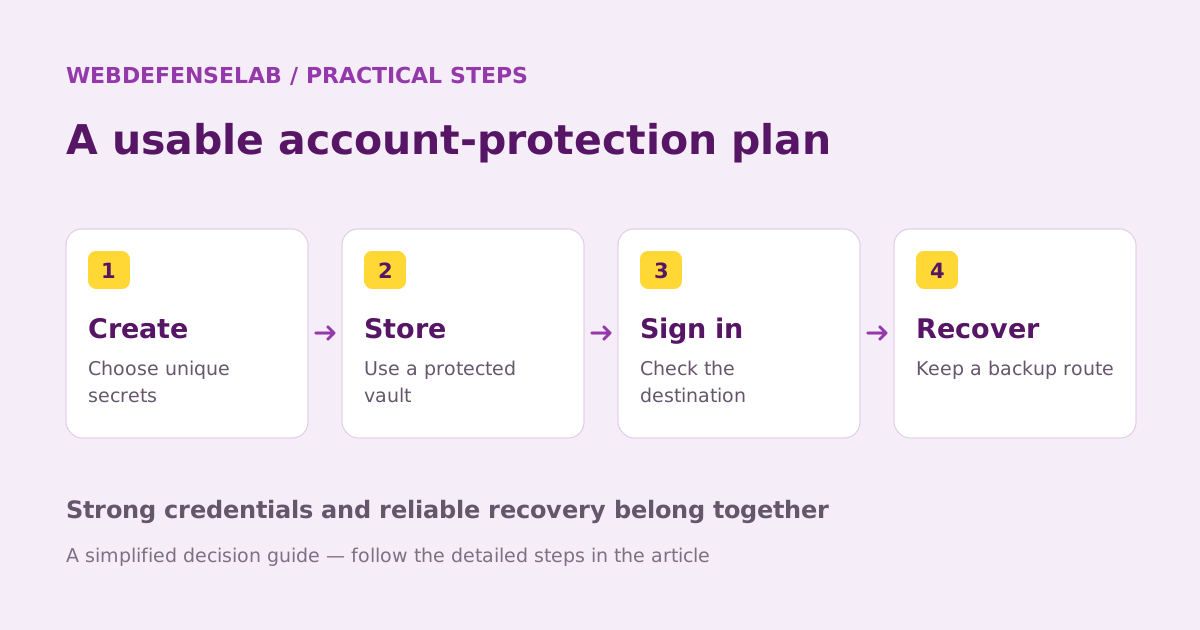
Begin with the account protecting the vault. Use a unique master or account password when required, protect the associated email, and enable a suitable second factor or passkey where supported. Read how authorized-device unlocking differs from signing in on a new device. A fingerprint prompt on today’s phone is not a complete recovery strategy.
Check the provider’s explanation of encryption and recovery together. “Zero knowledge” is a design claim, not a promise that support can restore every lost secret. Ask what material you must retain and which recovery options need advance setup. In 1Password, for example, the Secret Key has a defined role alongside the account password; it is not a universal reset code.
Next, check the devices themselves. Keep the operating system and browser updated, use a screen lock, and avoid installing an unknown extension that claims to improve the vault. A well-designed password manager cannot remove every risk from a compromised or carelessly shared device. Review the official support process so an unexpected message asking for vault secrets is easier to recognize.
A practical evaluation before you move everything
- Save and retrieve: add a low-risk login and find it on each essential device.
- Change a password: update it at the actual service, then confirm the vault stores the new value.
- Check the destination: make sure you can distinguish the correct domain before filling credentials.
- Share a harmless item: verify that the intended person can access it and private records stay private.
- Review recovery: identify what remains available if the main device is lost.
- Inspect an import: compare records and check notes, attachments, passkeys and verification codes separately.
Write down anything that did not work as expected. Was the problem an unsupported browser, an unenabled permission, a plan restriction, or an interface you found difficult? Those lead to different decisions. A product may be capable of a task but still be a poor match if the person using it cannot maintain the necessary setup.
How to switch without losing account access
Keep working access to important accounts while evaluating the new vault. If you export a CSV, treat it as an unencrypted transfer file unless the exporter explicitly says otherwise. Use a trusted device and avoid shared or automatically synchronized folders. Check the import before removing the temporary file and before retiring the old manager.
Do not assume every type of data moves through a password export. Passkeys, attachments, custom fields and shared ownership may require separate handling. An imported record count is a useful check, but opening the essential records and signing in successfully is more informative.
Finally, choose which manager saves new credentials. Competing prompts from an old extension and a browser’s built-in store can split updates between vaults. Moving storage does not strengthen an existing reused password, so schedule a cleanup of the actual accounts. Begin with email and other accounts used to recover access elsewhere.
Password manager questions
Which password manager is best for everyone?
There is no single best fit for every device mix and household. Narrow the comparison by platform, sharing, recovery and budget, then use the same small evaluation exercise with two candidates.
Are browser password managers enough?
They can be when they support your devices and you maintain the account and recovery settings. A separate product is worth comparing for a specific gap, such as a mixed-platform routine or a different sharing model.
Should my verification codes live in the same vault?
Combining them is convenient; keeping them separate creates a different separation of risks. Choose intentionally for the account involved, and avoid storing the only code needed to unlock the manager inside that locked manager.
Do I still need passwords if I use passkeys?
You may, because services and devices support different sign-in methods. Check storage, sign-in, migration and recovery independently. Keep a usable recovery route while changing how an important account is accessed.
Sources and update notes
Provider documentation checked September 25, 2026. Product sources are linked in each quick review above and in every full assessment. General account-management guidance is available from the National Cyber Security Centre. For the fundamentals, read our password manager guide.
About the author
 Clara WeissVPNs, passwords & digital privacy
Clara’s coverage focuses on VPN privacy, transparent product documentation, password-manager recovery, and the practical limits of encrypted connections. Start with the VPN explainers for help turning a feature list into a useful decision.
View profile and articles